

Handling Text Length Differences in Button Design
Tagalog tends to be longer than English. We show practical techniques for keeping buttons visually balanced and clickable across both languages without overflow issues.
Read MoreHeaders need to work across devices and languages. We explore flexible grid systems, text wrapping strategies, and responsive type scales that accommodate both English and Filipino without sacrificing readability or design intent.
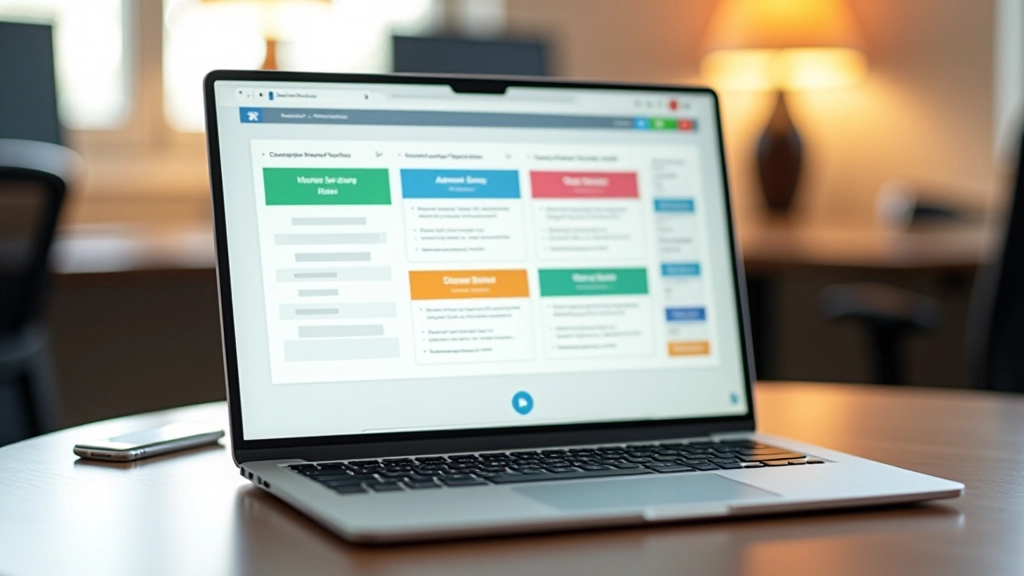
When you’re designing for the Philippines, you’re not just translating English to Tagalog. You’re working with two languages that behave completely differently on screen. English is compact. Filipino is verbose. A button that reads “Submit” in English becomes “Ipadala” — which isn’t so bad. But “Create Account” becomes “Lumikha ng Account” — that’s roughly 40% longer.
Headers face this challenge every single day. They’re the first thing visitors see. They need to load fast, look sharp, and feel natural in both languages. Get it wrong, and you’ll have text wrapping awkwardly, buttons overflowing their containers, or worse — navigation items disappearing on mobile.
We’ve worked with dozens of Philippine businesses trying to solve this. The successful ones don’t just apply translation directly. They redesign the structure itself.
Tagalog text averages 35-40% longer than English equivalents. Your header layout must flex and breathe across both languages without redesigning for each one.
The first rule we follow: don’t lock your header into a rigid structure. Most designers build a header that works perfectly in English, then panic when the Tagalog version doesn’t fit.
Instead, use CSS Grid with flexible columns. Your logo might take 150px. Your navigation items should flex based on content. Your buttons should have min-width and max-width, not fixed widths. Here’s what we typically do:
This means your header height might change between languages. That’s okay. Your layout breathes instead of breaking.

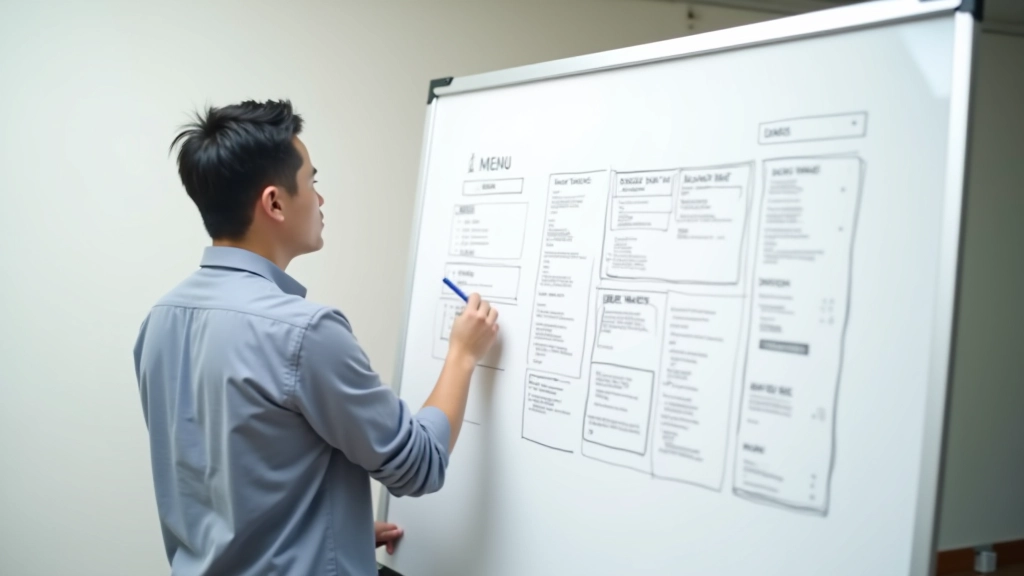
Here’s where most teams fail: they use overflow: hidden or text-overflow: ellipsis on menu items. This works until someone switches to Filipino and suddenly sees “Ang Aming mga…” instead of “Ang Aming mga Serbisyo.”
Better approach? Allow wrapping. Set a reasonable min-height on your nav items (40-50px) and let text wrap naturally if needed. On desktop, this rarely happens. On mobile or with longer translations, your header adapts instead of truncating.
For buttons specifically, use display: flex with flex-wrap: wrap and align-items: center. This keeps the button clickable and readable even if the text breaks across two lines.
Your type scale is another place where English and Filipino diverge. English can pack more meaning into fewer characters. Filipino is more descriptive.
Use clamp() for responsive font sizing. This lets your header text scale fluidly between mobile and desktop without awkward breakpoints. We typically start with:
h1 { font-size: clamp(1.25rem, 4vw, 2rem); }
This scales your header title from 1.25rem on small screens to 2rem on large screens. The beauty? It works the same whether your text is “Welcome” or “Maligayang Pagdating.” The container adapts, not the type.
Line-height becomes critical too. Filipino text with longer words needs more breathing room. Use 1.5 to 1.6 line-height for body text in headers, not the tight 1.2 you might use for English.
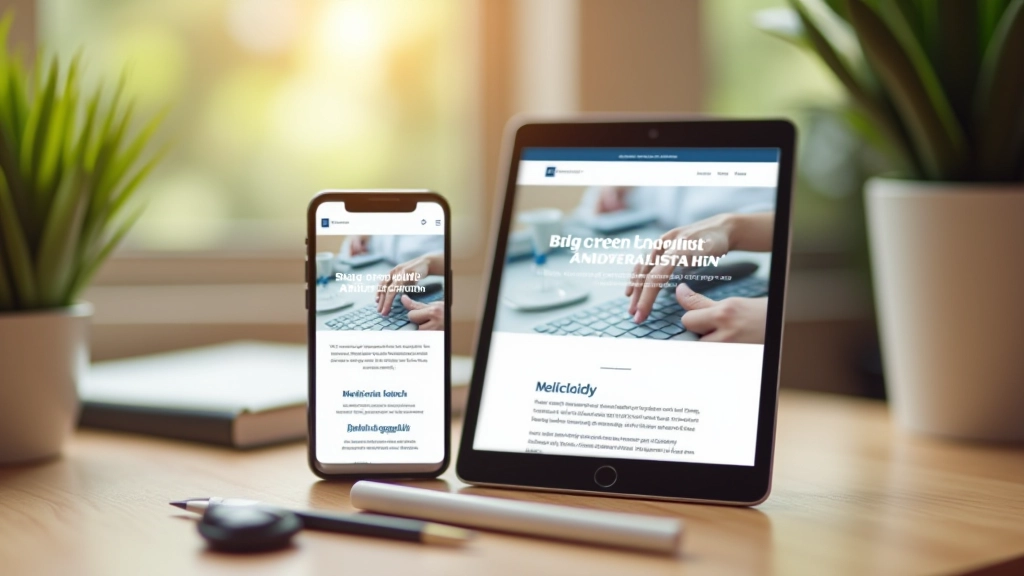

Your language switcher needs a home. The worst approach? Putting it in the navigation menu where it competes with actual navigation items. Better? A dedicated, small toggle in the header corner.
Keep it simple. We usually use a two-letter code (EN / FIL) in a small button. It’s immediately recognizable without taking up space. Fixed width (around 50-60px) so switching languages doesn’t shift your layout.
Position matters. Top right works for left-to-right languages. It’s where eyes naturally go. Make sure it doesn’t overlap your main CTA button — that’s your most important interactive element.
And here’s the key: when someone switches languages, the layout should adjust smoothly. No jumping, no reflow that makes the page feel broken. Use CSS transitions on width and opacity for a polished feel.
This is where discipline matters. Your header should look intentional in both English and Filipino. Same visual hierarchy, same spacing, same feel.
Center all items vertically using flexbox. Don’t use line-height tricks. Flexbox align-items: center ensures logos, text, and buttons sit at the same baseline regardless of language.
Use consistent gap values between header elements. Don’t adjust spacing per language. If your nav items have 1rem gap in English, they get 1rem in Filipino too. Let the content flow naturally.
Icons are your universal language. Use them heavily in headers. A shopping cart icon works in English and Filipino equally. Reduces reliance on text-only navigation.
Give buttons enough padding. Padding: 0.75rem 1.5rem works for most cases. It accommodates “Login” and “Mag-login” without looking cramped in either language.
Building responsive bilingual headers isn’t magic. It’s about embracing flexibility. Don’t force English proportions onto Filipino text. Don’t assume every language will fit your original design.
Instead, use flexible grids, allow text wrapping, scale typography responsively, keep toggles simple, and maintain visual consistency. Test with real translations early. The sooner you see “Maligayang Pagdating” in your header, the sooner you’ll catch layout issues.
Your Philippine audience deserves a header that feels native in both languages. That’s the difference between a site that works and one that feels thoughtfully designed.
This article provides educational information about bilingual header design principles and techniques. The strategies and approaches discussed are based on design best practices and real-world implementation experience. Your specific project may have unique requirements that differ from the examples shown here. We recommend testing all techniques with your actual user base and language combinations before full deployment. Design decisions should always be informed by your specific audience needs and accessibility requirements.