
Language Switcher Toggle Design Patterns
A toggle that doesn’t clutter the interface. We break down placement strategies, size considerations, and why some toggles work better than others.
Tagalog text runs 30-50% longer than English. Here’s how to keep buttons aligned without breaking your layout.

You’re designing a button. “Sign Up” in English. Clean. Simple. Then you translate to Tagalog: “Magparehistro.” Suddenly your button’s wider. The spacing breaks. Your grid collapses.
This isn’t a small problem. It’s the core challenge of bilingual interfaces for Philippine audiences. Tagalog tends to be longer than English — sometimes dramatically so. A phrase that fits neatly in English becomes cramped or overflows in Tagalog. And if you’re not planning for this from the start, you’ll be redesigning buttons at the last minute.
The good news? It’s completely manageable with the right approach. We’ve worked through this dozens of times, and there are proven techniques that work across all screen sizes and design systems.
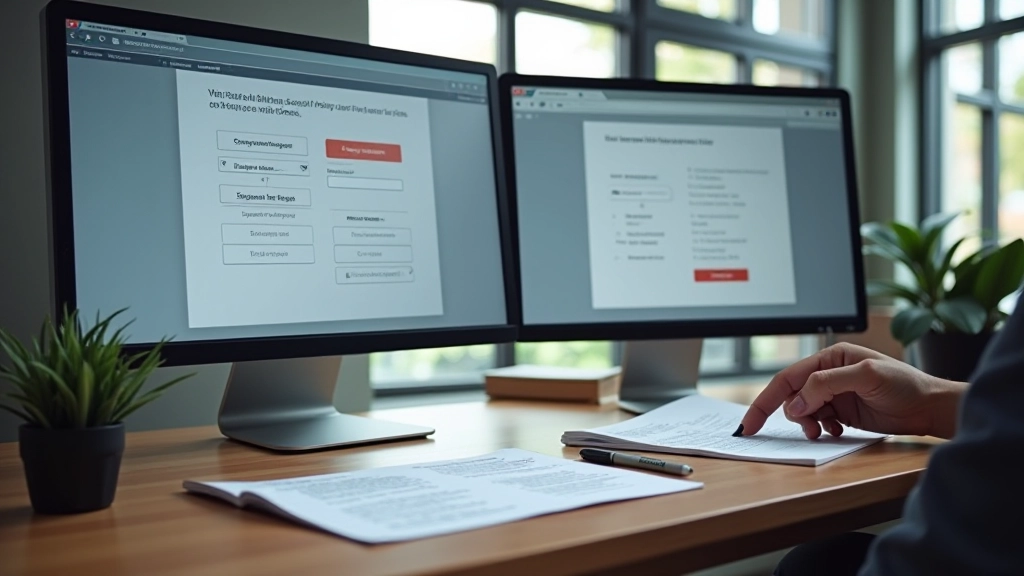
The simplest approach is a fixed-width button with overflow management. You set a specific width — say 120px — and let the text behave according to CSS rules. But here’s the trick: you don’t just let it overflow. You handle it.
Using
white-space: nowrap
and
text-overflow: ellipsis
with
overflow: hidden
means longer text gets truncated with an ellipsis. It’s not elegant, but it’s predictable. The button stays exactly the size you designed. The text cuts off at “Magparehi…” if it’s too long.
The downside? Users don’t see the full label. On a button that says “Magparehi…” nobody knows what the button does. So this works best when the truncated text is still meaningful, or when you’ve got tooltips or icons to clarify intent.
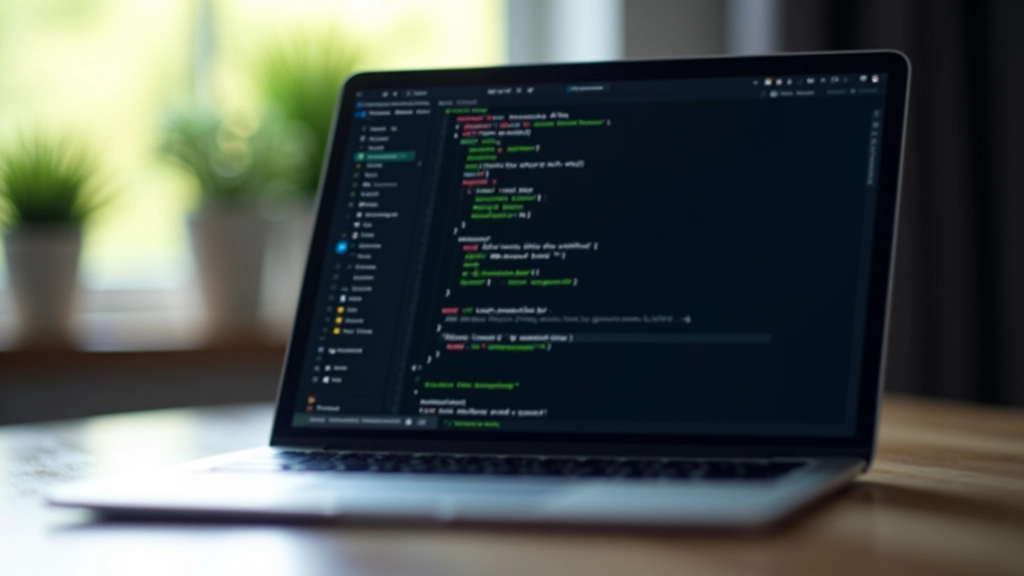

This is the approach we recommend for most interfaces. You set a minimum width (so the button doesn’t shrink to nothing) and a maximum width (so it doesn’t take over the whole screen). The button grows and shrinks to fit its content.
On desktop, “Sign Up” sits comfortably in 100px. “Magparehistro” takes up 140px. Both look fine because you’ve got the space. On mobile at 320px width, you might allow buttons to take up 85% of the viewport. The text wraps to two lines if needed.
Key principle: Min-width ensures your button doesn’t collapse. Max-width prevents it from dominating. The space between is where magic happens — your button adapts to whatever language is thrown at it.
You’ll also want padding that scales. Instead of fixed 12px horizontal padding, use clamp:
padding: 0.5rem clamp(0.75rem, 2vw, 1.5rem)
. This adjusts based on viewport width, keeping proportions balanced across all screen sizes.
Sometimes the button text is inherently long. Call-to-action buttons often have more than one or two words. “Download Your Free Guide” becomes “I-download ang Iyong Libreng Gabay” — that’s a sentence, not a label.
For these situations, allowing text to wrap across two or three lines is the right choice. You remove the
white-space: nowrap
rule. Let CSS handle it naturally. The button grows taller to accommodate the text. This is honest design — you’re showing users exactly what they’re clicking, in their language, without truncation or tricks.
The trick here is controlling the line length. You don’t want a button that’s 30px wide with text wrapping to 5 lines. Set a sensible max-width — usually 240-280px for primary buttons, 160-200px for secondary. The text wraps within those bounds.
Remove white-space: nowrap — Let text flow naturally
Set max-width on button — Usually 240-280px for primary actions
Adjust padding vertically — More space at top/bottom when text wraps
Test at minimum viewport — Ensure no weird orphaned words
These techniques are guidelines based on real bilingual projects, not absolute rules. Every interface is different. Your specific constraints — grid system, brand guidelines, responsive breakpoints — will shape which approach works best. Test your buttons at real viewport widths with actual translated text. Don’t guess. Don’t rely on “average” text length. Use the actual words your users will see.
Fixed width works for navigation where space is premium and consistency matters most. Flexible width is your default for most interfaces — it’s responsive and language-agnostic. Multi-line buttons are honest when your content is genuinely longer.
The real skill is knowing which one to pick. Look at your layout. Count your buttons. Check how much horizontal space you actually have. Test both English and Tagalog text. See what breaks first. Then choose the technique that keeps your design intact without sacrificing clarity.
Bilingual design isn’t about making one language fit a box designed for another. It’s about designing a box that respects both languages. Your buttons are part of that conversation. Make them work for both.

Senior UX/UI Design Strategist
Maria Santos is a bilingual navigation design expert with 14 years of experience helping Philippine businesses create seamless English-Tagalog interfaces at DuoLang Navigation Inc.
A toggle that doesn’t clutter the interface. We break down placement strategies, size considerations, and why some toggles work better than others.

Same menu hierarchy, different text widths. Learn how to maintain visual consistency when translations shift your layout.
Headers need to work across devices and languages. We explore flexible grid systems that adapt to both English and Tagalog.